How to Use the TeraBox App: A Practical Guide for Every User
Are you worry about how to use the TeraBox app? Let’s explore this app with us. It has a simple interface to use. There are many other functions that new and regular users must know. We will unveil how to use TeraBox, each icon, and every sign in the interface.
For the first time, it may look like a lot, but each icon and section has a clear purpose. Once you understand each icon, symbol, and its purpose, you will easily use TeraBox smoothly and efficiently.
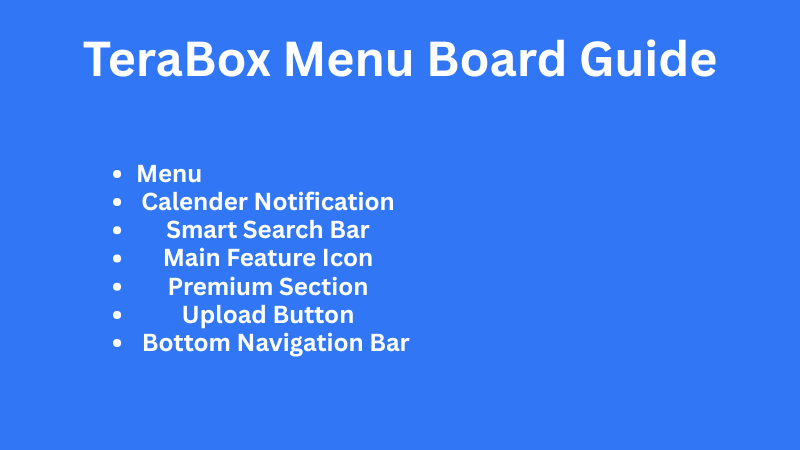
Understanding the Top Bar
Menu (three lines)
The three-line menu opens the Account Panel, where you can access the main features of the app. Below are the options explained in a clear and readable way:
- Automatic Backup—Turn automatic backup on or off to save your photos and videos automatically.
- Import—Import files, images, and videos from your device.
- Space Analyzer – Check how much space each file is using and see how much storage is left.
- Scan Document – Scan documents with better visibility and resolution.
- Personal Vault—Create a private gallery to store personal files securely and separately.
- Recycle Bin – Restore deleted files or permanently erase them.
- Benefits – Collect gold rewards by completing tasks in the app.
- Settings—Manage app settings such as:
- Binding your email
- Turning on file sharing via WiFi
- Enabling night mode
- Clearing cache data
- Binding your email
- Help Center – Contact support and troubleshoot any issues while using the app.
- App Version – Check the current version of the app and see if any updates are available.
This menu bar gives you full control over your account and app features.
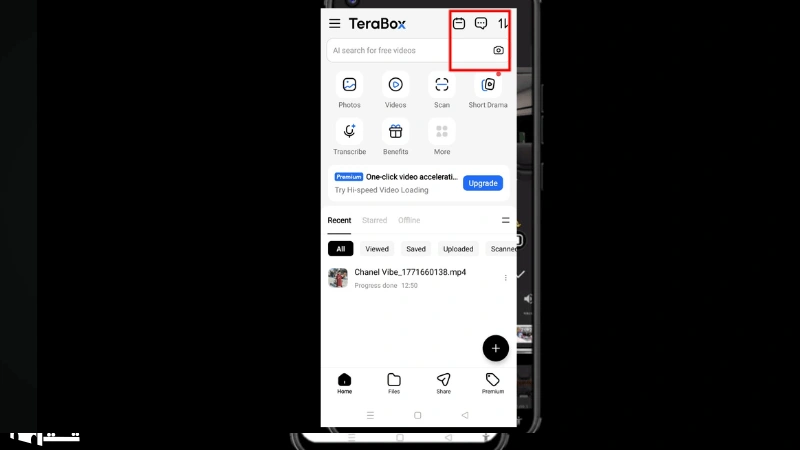
Calendar Notifications and Files Shared
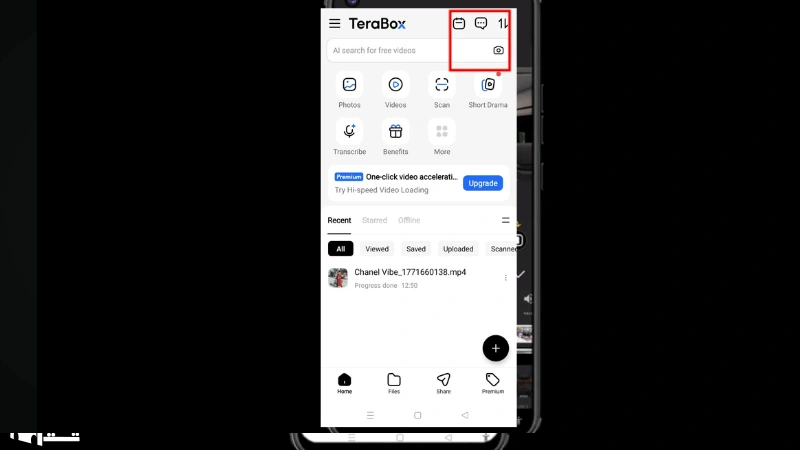
- Calendar Feature—The calendar icon shows the schedule for gold coin rewards and important day announcements. You can check upcoming events and reward dates here.
- Notification Sign—The notification icon displays notices, alerts, and important updates for you. It keeps you informed about new activities and messages.
- File Sharing Option – This symbol shows how many files you have shared. You can also view and manage the files you have shared from this section.
Smart Search Bar
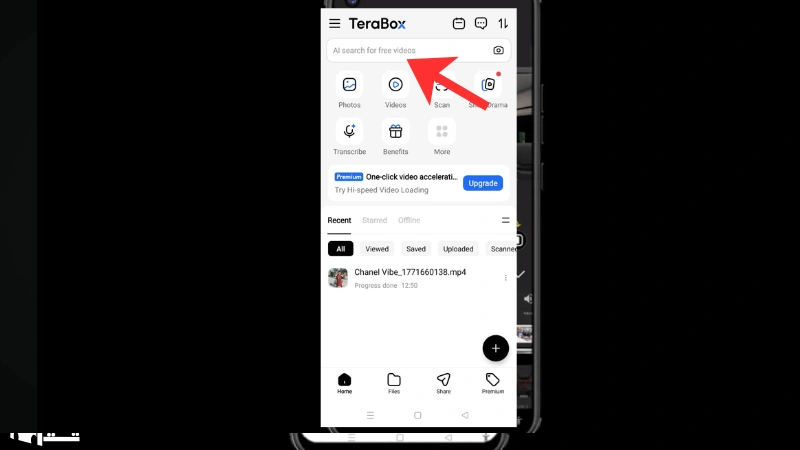
The smart search bar allows you to find your videos instantly. Simply type the file name or keyword to get quick results:
- Global Option – The global option expands your search worldwide. It fetches results from global sources, not just your local storage.
- Camera Option – The camera icon lets you upload an image and find similar results related to that image. It helps you search using photos instead of text.
Main Features Icons
These are the heart of the home screen or application interface:
- Photos – This section shows all your images in one place. It also displays how many images you have stored in your account.
- Videos—Here you can access your videos without downloading them. You can directly stream your videos from this section.
- Scan—The scan option allows you to scan your files instantly. It is basically a free tool for quick and easy document scanning.
- Short Drama – This is a built-in entertainment hub where you can enjoy short clips from dramas and series.
- Transcribe—This tool helps you convert audio and video into text instantly.
- Benefits – This section shows the rewards you have earned. It also displays how many tasks are remaining to receive more rewards.
Premium Section
In this section, you can access the premium version features of TeraBox. It also shows the cost of the premium package. Here, you can see what benefits you will get after upgrading, such as:
- 1080p video playback quality
- Faster downloading and uploading speeds
- An ad-free experience
This section helps you understand the advantages of choosing the premium version.
Upload Button
The Plus (+) button is one of the most important tools for uploading images, files, and videos. It allows you to safely upload your documents, media, and other important data. Simply click on the Plus icon and start securing your files in the TeraBox app.
Bottom Navigation Bar
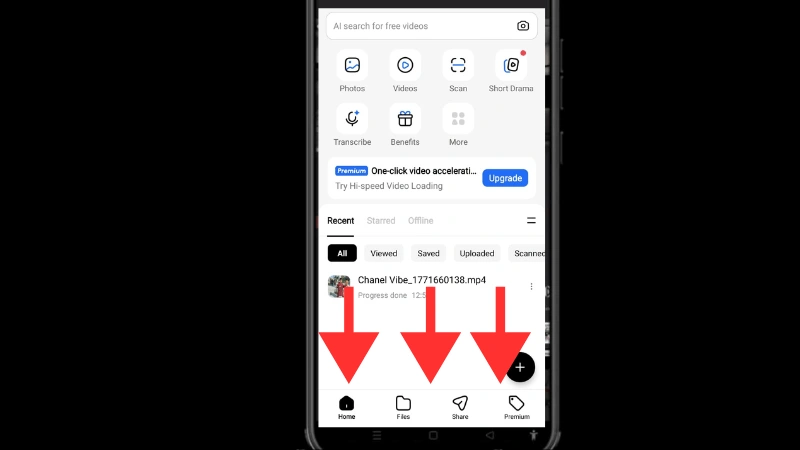
In the bottom bar, you have four main sections: Home, Files, Share, and Premium.
- Home—This is the main dashboard that shows you the overall app interface and quick access to features.
- Files—This section allows you to view all the files you have uploaded for secure storage in the app.
- Share—Here, you can send and receive files through shared links.
- Premium—This section contains information about premium features and upgrade options.
Conclusion
The TeraBox app is designed in such a way that even beginners can easily understand its icons and functions. Each section symbol clearly describes what it offers.
New users can start with the Plus icon to save their files, while regular users often use the Sharing, Files, and Folders sections. Once you understand how to use the TeraBox app, you can easily secure and manage your files efficiently.